GitHub - ssleptsov/ninja-keys: Keyboard shortcuts interface for your website. Working with static HTML, Vanilla JS, Vue, React.
Extracto
Keyboard shortcuts interface for your website. Working with static HTML, Vanilla JS, Vue, React. - GitHub - ssleptsov/ninja-keys: Keyboard shortcuts interface for your website. Working with static ...
Resumen
Resumen Principal
Ninja Keys es una interface de atajos de teclado diseñada para integrarse fácilmente en sitios web, independientemente del entorno tecnológico. Esta herramienta permite a los desarrolladores mejorar la experiencia de usuario al ofrecer una navegación más rápida y eficiente mediante comandos de teclado. Compatible con HTML estático, Vanilla JS, Vue y React, Ninja Keys se presenta como una solución versátil y ligera para implementar funcionalidades de productividad avanzada. Su enfoque en la accesibilidad y la usabilidad la convierte en una opción atractiva para proyectos que buscan optimizar la interacción del usuario sin sacrificar el rendimiento. La integración se realiza de forma sencilla, lo que permite a los equipos de desarrollo incorporarla sin curvas de aprendizaje pronunciadas. Además, al estar alojada en GitHub, la comunidad puede contribuir, revisar y mejorar continuamente el código, garantizando actualizaciones constantes y una base sólida de soporte.
Elementos Clave
- Compatibilidad multi-framework: Ninja Keys funciona sin problemas en tecnologías como Vanilla JS, Vue y React, lo que amplía su aplicabilidad en diversos tipos de proyectos web modernos.
- Interfaz intuitiva de atajos: Permite a los usuarios ejecutar acciones rápidas mediante comandos de teclado, mejorando significativamente la eficiencia operativa dentro de una aplicación web.
- Integración sencilla: Su diseño ligero y modular facilita la implementación en proyectos existentes, reduciendo el tiempo de desarrollo y minimizando conflictos técnicos.
- Código abierto en GitHub: Al estar disponible públicamente, fomenta la colaboración comunitaria, lo que asegura una evolución continua y una mayor confianza en su estabilidad y seguridad.
Análisis e Implicaciones
La inclusión de una interfaz de atajos de teclado como Ninja Keys representa un paso importante hacia una web más eficiente y accesible, especialmente en aplicaciones que requieren interacción frecuente. Su capacidad de integración con múltiples tecnologías lo convierte en una herramienta valiosa para equipos que buscan estandarizar la experiencia del usuario sin depender de un solo framework. Además, al ser de código abierto, su evolución está impulsada por la comunidad, lo que puede resultar en mejoras rápidas y adaptaciones a nuevas tendencias del desarrollo web.
Contexto Adicional
Ninja Keys se posiciona como una solución práctica para desarrolladores que desean agregar funcionalidades de productividad sin recurrir a bibliotecas pesadas o complejas. Su naturaleza modular y su enfoque en la simplicidad lo hacen ideal tanto para proyectos pequeños como para aplicaciones empresariales que requieren una capa adicional de interacción avanzada.
Contenido
Keyboard shortcuts interface for your website. Working with Vanilla JS, Vue, React.



Demo
https://ninja-keys-demo.vercel.app/

Motivation
A lot of applications support that pattern, user hit ⌘+k (or ctrl+k) and search UI dialog appear. I've seen recently in Notion, Slack, Linear, Vercel and Agolia, but I'm sure there are plenty more. Also, there is a Apple Spotlight, Alfred and Raycast app that using this pattern too but different shortcuts. There are already some libraries but they are too framework spesific, like larevel only or react only Althought, mine is not a silver bullet and if you need more framework integration, check them out too.
I was needed an keyboard interface for navigation for static website without any frameworks. In same time I have a few vue projects where it can be useful too. So I decided to give first shot for Web Components and Lit Element.
Integrations
Features
- Keyboard navigation
- Light and dark theme build in
- Build-in icons support from Material font, can support custom svg icons too.
- Nested menu. Tree or flat data structure can be used
- Auto register your shortcuts
- Root search, for example, if search "Dark" it will find it within the "Theme" submenu
- CSS variable to customize the view
- Customizable hotkeys to open/close and etc. Choose what fit your website more.
Why "Ninja" name?
Because it appears from nowhere and executes any actions quickly.
Or because it allows your users to become keyboard ninja's
Install from NPM
Import if you are using webpack, rollup, vite or other build system.
Install from CDN
Mostly for usage in HTML/JS without build system.
<script type="module" src="https://unpkg.com/ninja-keys?module"></script>
or inside your module scripts
<script type="module">
  import {NinjaKeys} from 'https://unpkg.com/ninja-keys?module';
</script>
Usage
Add tag to your html.
<ninja-keys> </ninja-keys>
<script>
  const ninja = document.querySelector('ninja-keys');
  ninja.data = [
    {
      id: 'Projects',
      title: 'Open Projects',
      hotkey: 'ctrl+N',
      icon: 'apps',
      section: 'Projects',
      handler: () => {
        // it's auto register above hotkey with this handler
        alert('Your logic to handle');
      },
    },
    {
      id: 'Theme',
      title: 'Change theme...',
      icon: 'desktop_windows',
      children: ['Light Theme', 'Dark Theme', 'System Theme'],
      hotkey: 'ctrl+T',
      handler: () => {
        // open menu if closed. Because you can open directly that menu from it's hotkey
        ninja.open({ parent: 'Theme' });
        // if menu opened that prevent it from closing on select that action, no need if you don't have child actions
        return {keepOpen: true};
      },
    },
    {
      id: 'Light Theme',
      title: 'Change theme to Light',
      icon: 'light_mode',
      parent: 'Theme',
      handler: () => {
        // simple handler
        document.documentElement.classList.remove('dark');
      },
    },
    {
      id: 'Dark Theme',
      title: 'Change theme to Dark',
      icon: 'dark_mode',
      parent: 'Theme',
      handler: () => {
        // simple handler
        document.documentElement.classList.add('dark');
      },
    },
  ];
</script>
Library using flat data structure inside, as in example above. But you can also use tree structure as below:
{
  id: 'Theme',
  children: [
    { id: ':ight' title: 'light_mode', },
    { id: 'System Theme',
      children: [
        { title: 'Sub item 1' },
        { title: 'Sub item 2' }
      ]
    }
  ]
}
Attributes
| Field | Default | Description |
|---|---|---|
| placeholder | Type a command or search... | Placeholder for search |
| disableHotkeys | false | If attribute exist will register all hotkey for all actions |
| hideBreadcrumbs | false | Hide breadcrumbs on header if true |
| openHotkey | cmd+k,ctrl+k | Open or close shortcut |
| navigationUpHotkey | up,shift+tab | Navigation up shortcuts |
| navigationDownHotkey | down,tab | Navigation down shortcuts |
| closeHotkey | esc | Close shotcut |
| goBackHotkey | backspace | Go back on one level if has parent menu |
| selectHotkey | enter | Select action and execute handler or open submenu |
| hotKeysJoinedView | false | If exist/true will display hotkeys inside one element |
| noAutoLoadMdIcons | false | If exist it disable load material icons font on connect |
Example
<ninja-keys placeholder="Must app is awesome" openHotkey="cmd+l" hideBreadcrumbs></ninja-keys>
Data
Array of INinjaAction - interface properties below
| Name | Type | Description |
|---|---|---|
| id | string | Unique id/text. Will be displayed as breadcrumb in multimenu |
| title | string | Title of action |
| hotkey | string(optional) | Shortcut to display and register |
| handler | Function(optional) | Function to execute on select |
| mdIcon | string(optional) | Material Design font icon name |
| icon | string(optional) | Html to render as custom icon |
| parent | string(optional) | If using flat structure use id of actions to make a multilevel menu |
| keywords | string(optional) | Keywords to use for search |
| children | Array(optional) | If using flat structure then ids of child menu actions. Not requried on tree structure |
| section | string(optional) | Section text. Like a header will be group with other same sections |
Methods
| Name | Arg | Description |
|---|---|---|
| open | { parent?: string } | Open menu with parent, if null them open root menu |
| close | Close menu | |
| setParent | parent?: string | Navigate to parent menu |
Example
const ninja = document.querySelector('ninja-keys');
ninja.open()
// or
ninja.open({ parent: 'Theme' })
Themes
Component support dark theme out-of-box. You just need to add a class.
<ninja-keys class="dark"></ninja-keys>
If you need more style control, use css variable below.
CSS variables
| Name | Default |
|---|---|
| --ninja-width | 640px; |
| --ninja-backdrop-filter | none; |
| --ninja-overflow-background | rgba(255, 255, 255, 0.5); |
| --ninja-text-color | rgb(60, 65, 73); |
| --ninja-font-size | 16px; |
| --ninja-top | 20%; |
| --ninja-key-border-radius | 0.25em |
| --ninja-accent-color | rgb(110, 94, 210); |
| --ninja-secondary-background-color | rgb(239, 241, 244); |
| --ninja-secondary-text-color | rgb(107, 111, 118); |
| --ninja-selected-background | rgb(248, 249, 251); |
| --ninja-icon-color | var(--ninja-secondary-text-color); |
| --ninja-icon-size | 1.2em; |
| --ninja-separate-border | 1px solid var(--ninja-secondary-background-color); |
| --ninja-modal-background | #fff; |
| --ninja-modal-shadow | rgb(0 0 0 / 50%) 0px 16px 70px; |
| --ninja-actions-height | 300px; |
| --ninja-group-text-color | rgb(144, 149, 157); |
| --ninja-footer-background | rgba(242, 242, 242, 0.4); |
Example
ninja-keys {
  --ninja-width: 400px;
}
Icons
By default component using icons from https://fonts.google.com/icons
For example, you can just set mdIcon to light_mode to render sun icon.
To add Material icons for website you need to add to html, for example
<link href="https://fonts.googleapis.com/css?family=Material+Icons&display=block" rel="stylesheet">
If want custom icons, you can use svg or img to insert it with icon property for action with ninja-icon class.
Example:
{
  title: 'Search projects...',
  icon: `<svg xmlns="http://www.w3.org/2000/svg" class="ninja-icon" fill="none" viewBox="0 0 24 24" stroke="currentColor">
    <path stroke-linecap="round" stroke-linejoin="round" stroke-width="2" d="M7 8h10M7 12h4m1 8l-4-4H5a2 2 0 01-2-2V6a2 2 0 012-2h14a2 2 0 012 2v8a2 2 0 01-2 2h-3l-4 4z" />
  </svg>`,
  section: 'Projects',
},
Also, you can change width and font using css variables for it
ninja-keys {
  --ninja-icon-size: 1em;
}
Change or hide footer
<ninja-keys>
  <slot name="footer">Must custom footer or empty to hide</slot>
</ninja-keys>
Dev Server
Linting
To lint the project run:
Formatting
Prettier is used for code formatting. It has been pre-configured according to the Lit's style.
License
Copyright (c) Sergei Sleptsov hey@sergei.ws
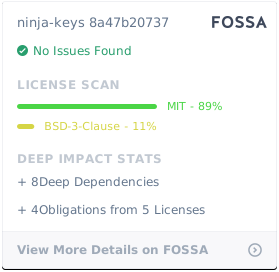
Licensed under the MIT license.
Fuente: GitHub